Before You Begin — Required Checklist
Log Into Meta Business Suite
Open business.facebook.com on your desktop browser. Log in using your existing Facebook account credentials. If you do not have a Facebook account, create one first before proceeding.
Create Your Meta Business Portfolio
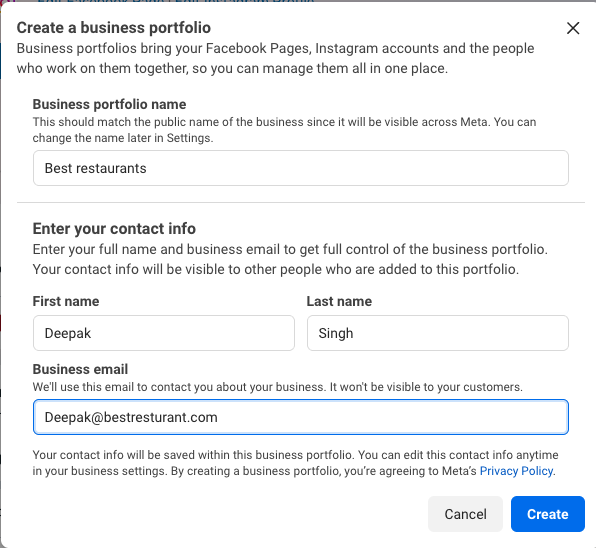
Once logged in, click Create a Business Portfolio. Enter your legal trade name or registered business name.
Enter your First Name, Last Name, and your primary Business Email. This email is used for Meta notifications and is kept private from customers.
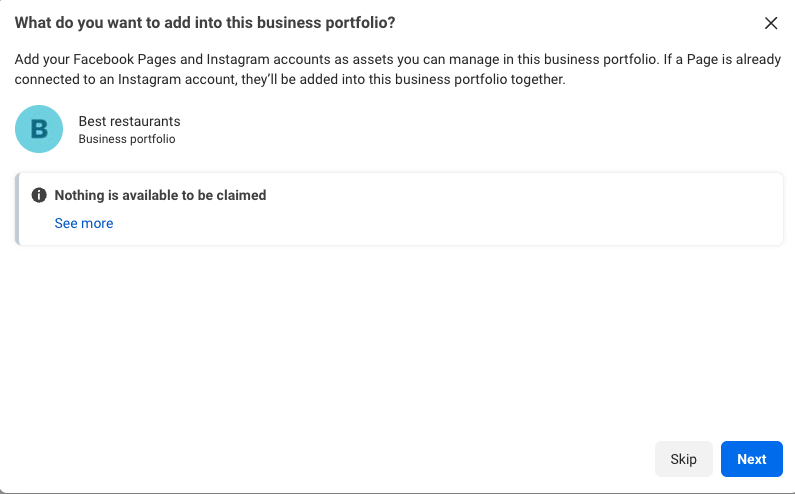
Meta will ask if you want to add Facebook Pages or Instagram profiles. You can click Skip for now — pages are not mandatory for WhatsApp Business API setup.
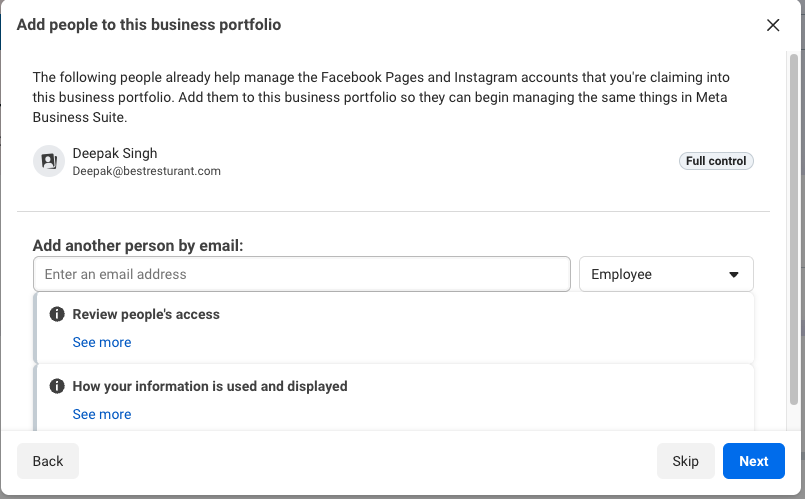
Next, you can invite team members (optional). As creator, you will automatically hold Full control. Click Next to proceed.
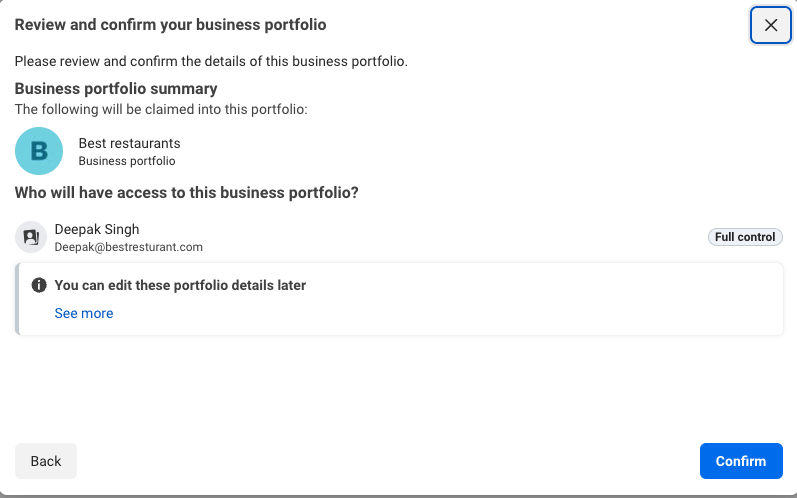
Review your portfolio details and click Confirm to finalize creation.
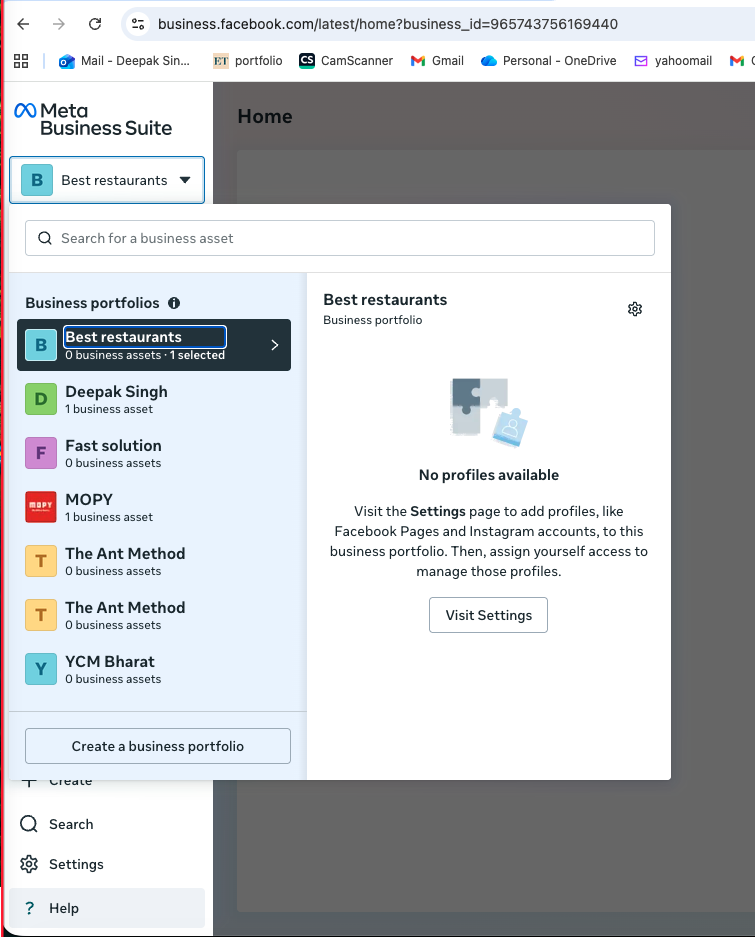
You will arrive at the Meta Business Suite dashboard where your portfolio is now active in the left sidebar.
Complete Your Business Profile
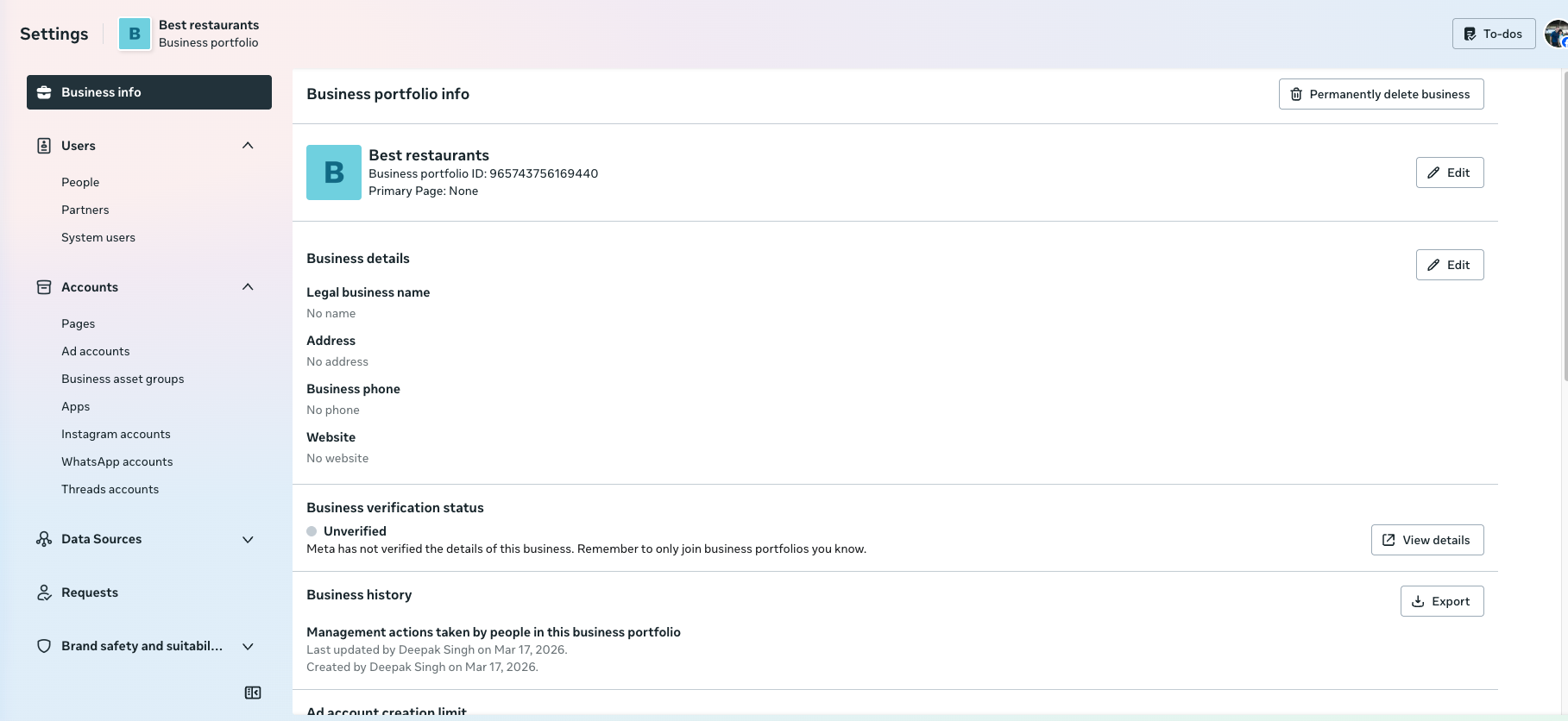
Navigate to Settings > Business Info. Click Edit under Business Details to enter your registered organization data.
You must provide your Legal Business Name, Registered Address (must match your GST certificate exactly), phone number, and official website URL.
Prepare Verification Documents
Have clear digital copies (PDF, PNG, or JPG) of your GST Registration Certificate and Certificate of Incorporation / Partnership Deed ready.
• Ensure your GSTIN status is active on the government portal.
• Do not upload watermarked, cropped, or handwritten document scans.
• Ensure all four corners of the certificate are visible.
Add Payment Method to Meta
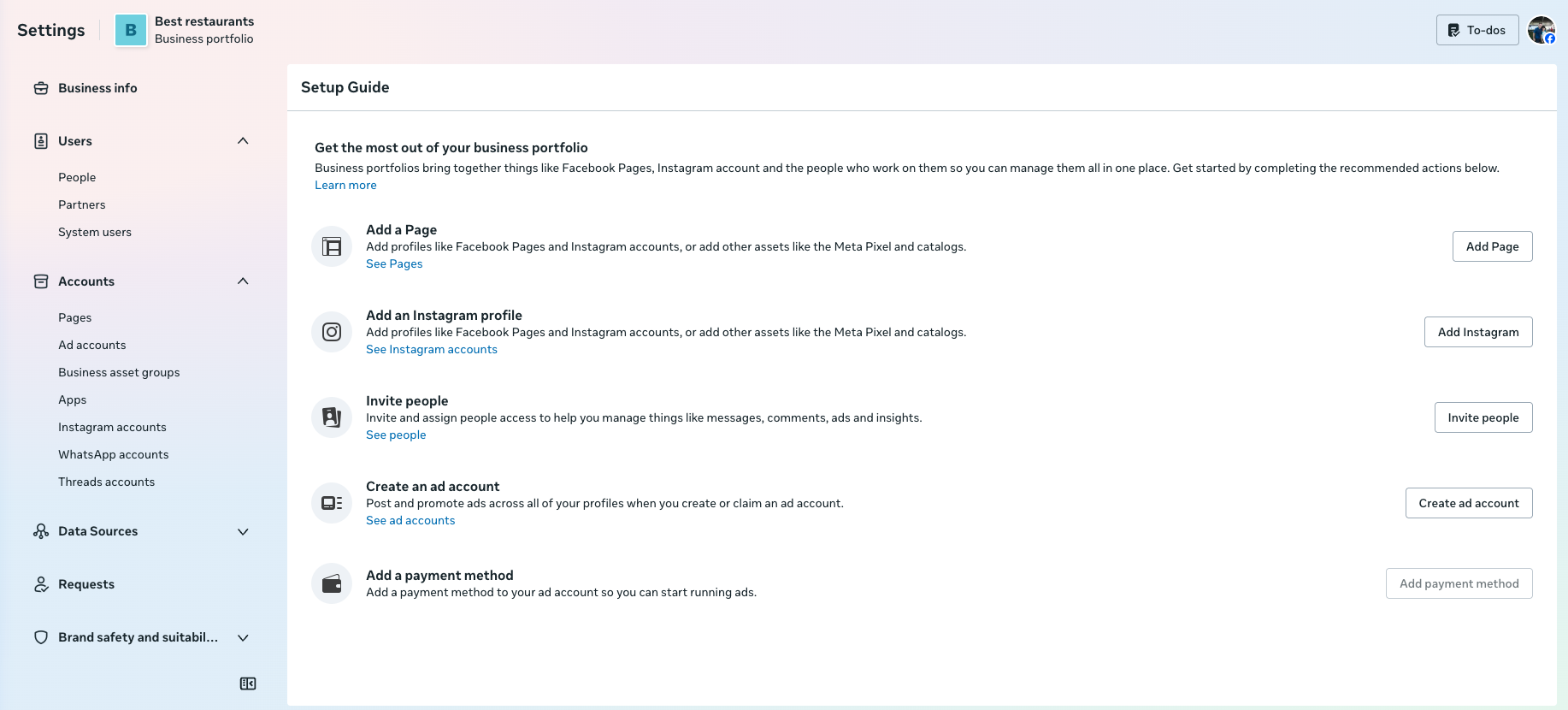
Navigate to Settings > Payment Methods (or under Setup Guide > Add Payment Method). Enter your business credit or debit card.
Meta requires an active payment method on file to establish API quota and billing integrity, even when operating within standard free conversation tiers.
Initiate Business Verification
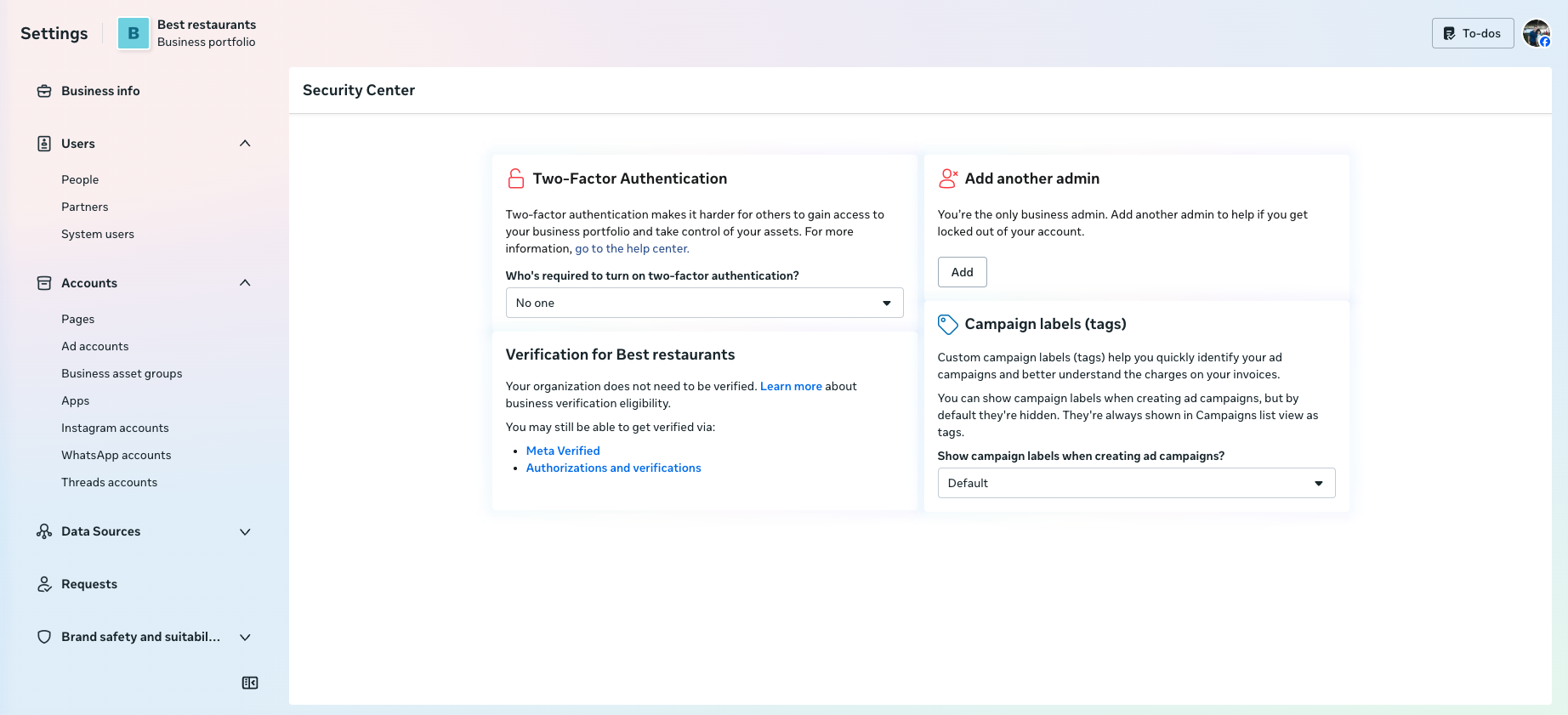
Go to Settings > Security Centre > Start Verification. Select India as your country.
Meta will attempt to locate your organization in official registry databases. If listed, select your business; otherwise, upload your prepared GST and incorporation certificates manually.
Complete verification via OTP delivered to your registered official email or business phone number.
Review & Approval
Meta typically reviews and approves verification submissions within 24 to 48 hours.
If Meta requests additional documentation, verify that the legal name and address in your profile match your government certificates exactly, then resubmit.
Meta portfolio configured? Connect your number to The Ant Method:
Continue to Ant Method Setup →