Before You Start
What happens to my current WhatsApp app?
Nothing changes for your regular usage. Your mobile app continues to work as always. Coexistence allows The Ant Method AI assistant to process automated orders, auto-replies, and CRM syncing in the cloud while you still chat with your clients on your phone.
Visit The Ant Method Onboarding Portal
Navigate to merchant.theantmethod.com/onboarding in your desktop browser. Click the green "Connect WhatsApp Assistant" button.
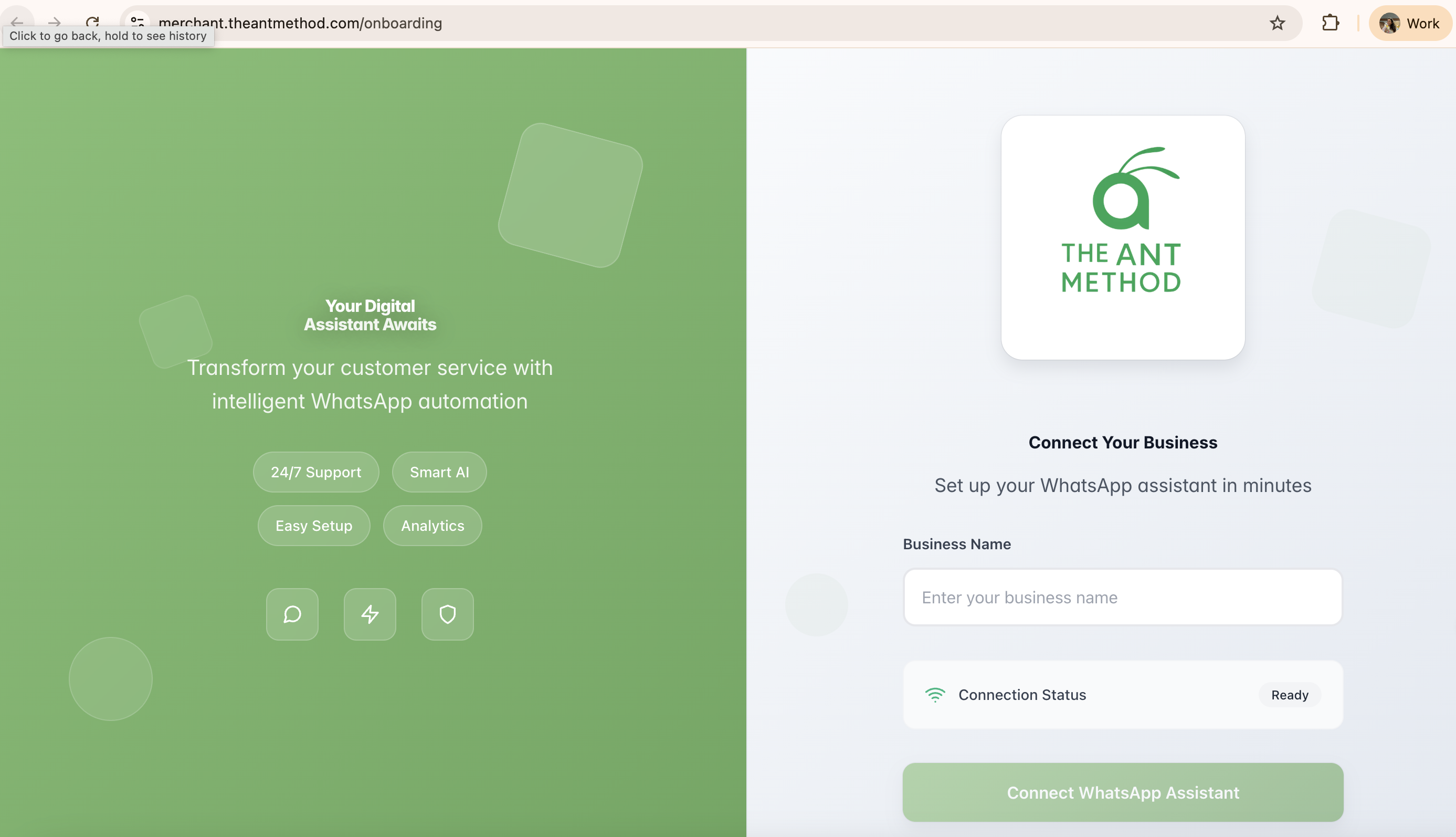
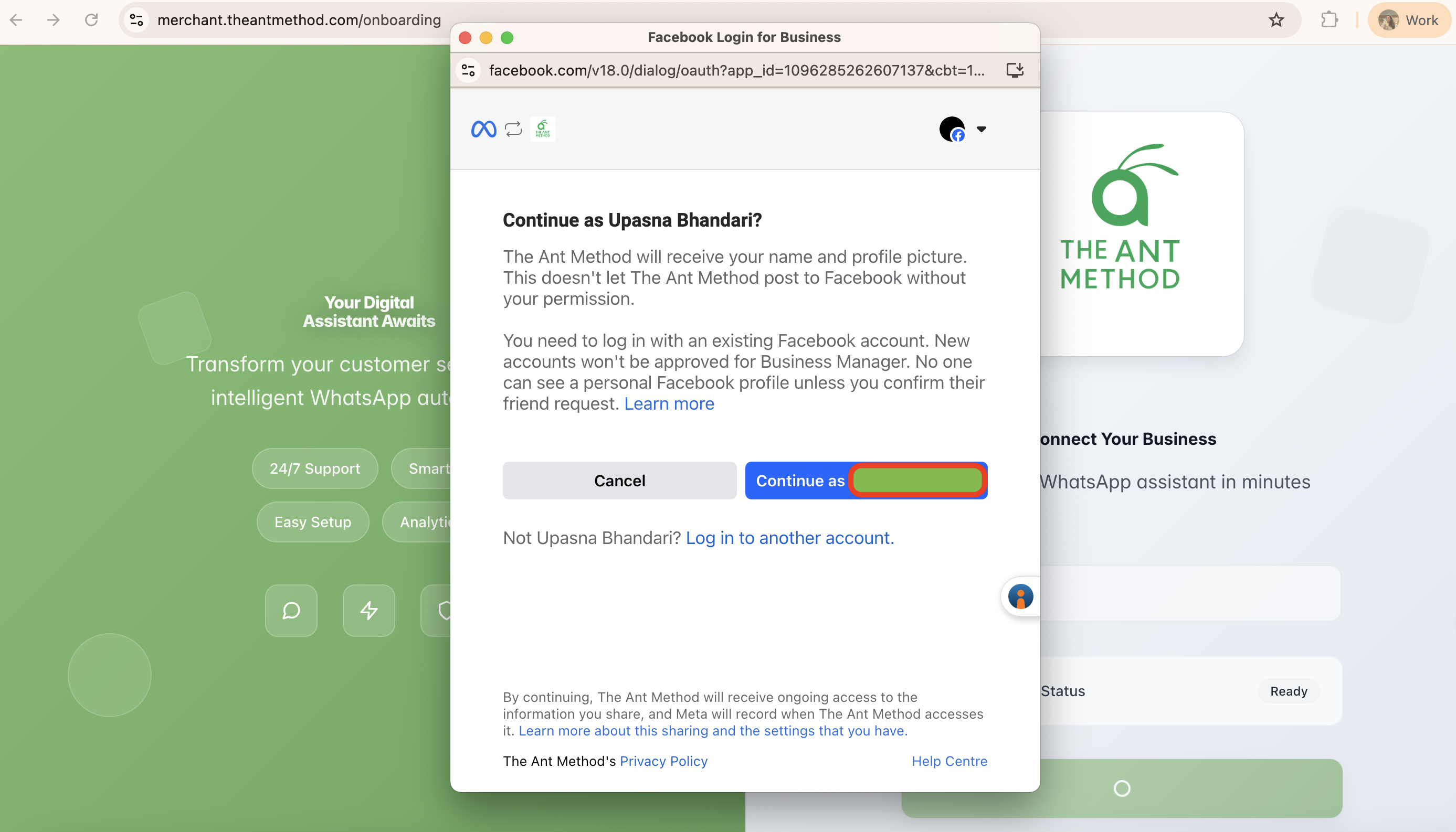
Log In with Facebook
A secure Meta popup dialog will prompt you to authorize The Ant Method. Click "Continue as [Your Name]". This only delegates WhatsApp Business API messaging permissions to your workspace.
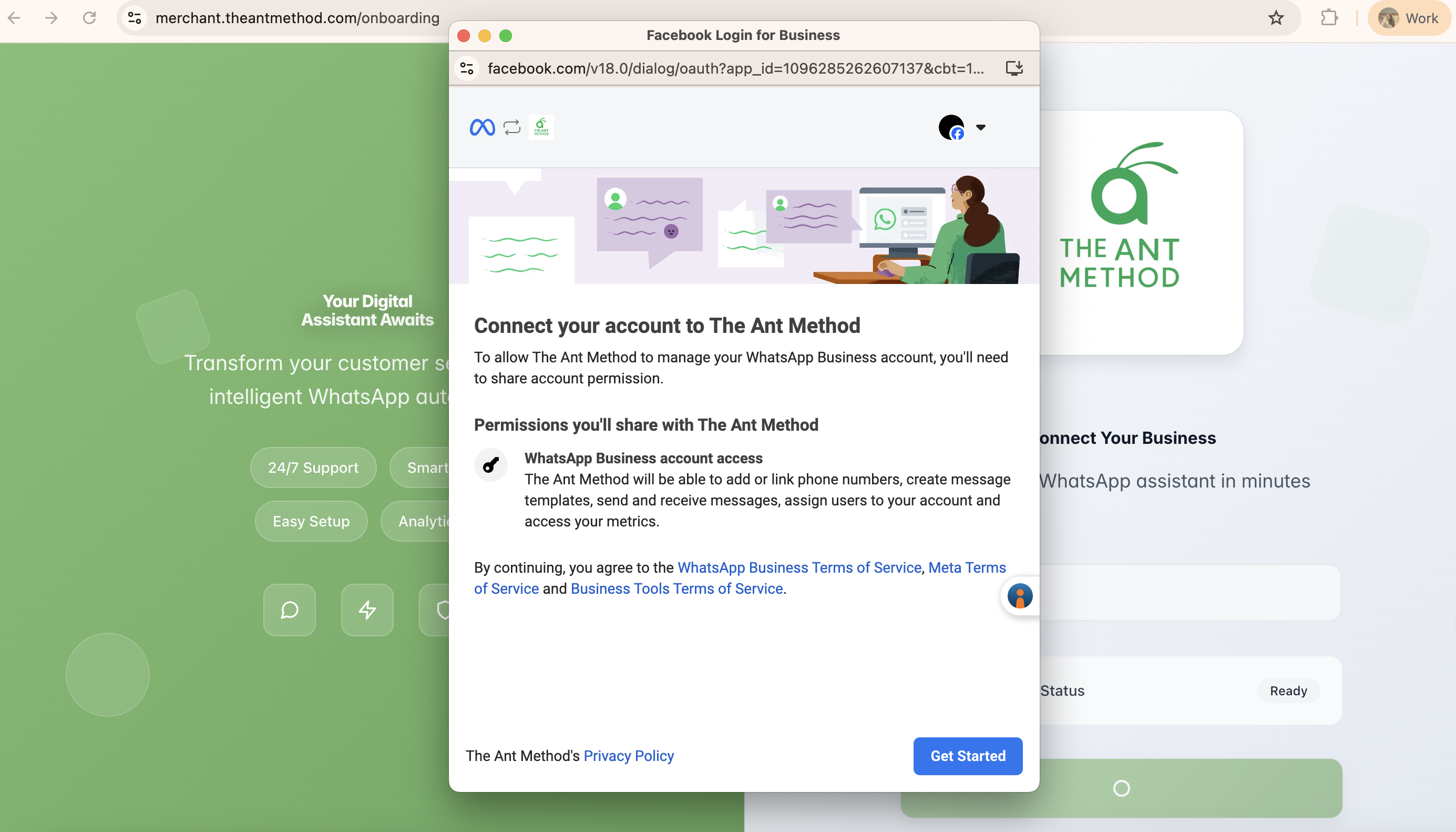
Review Permissions & Get Started
Review the requested permissions (sending & receiving WhatsApp customer messages). Click "Get Started" to continue.
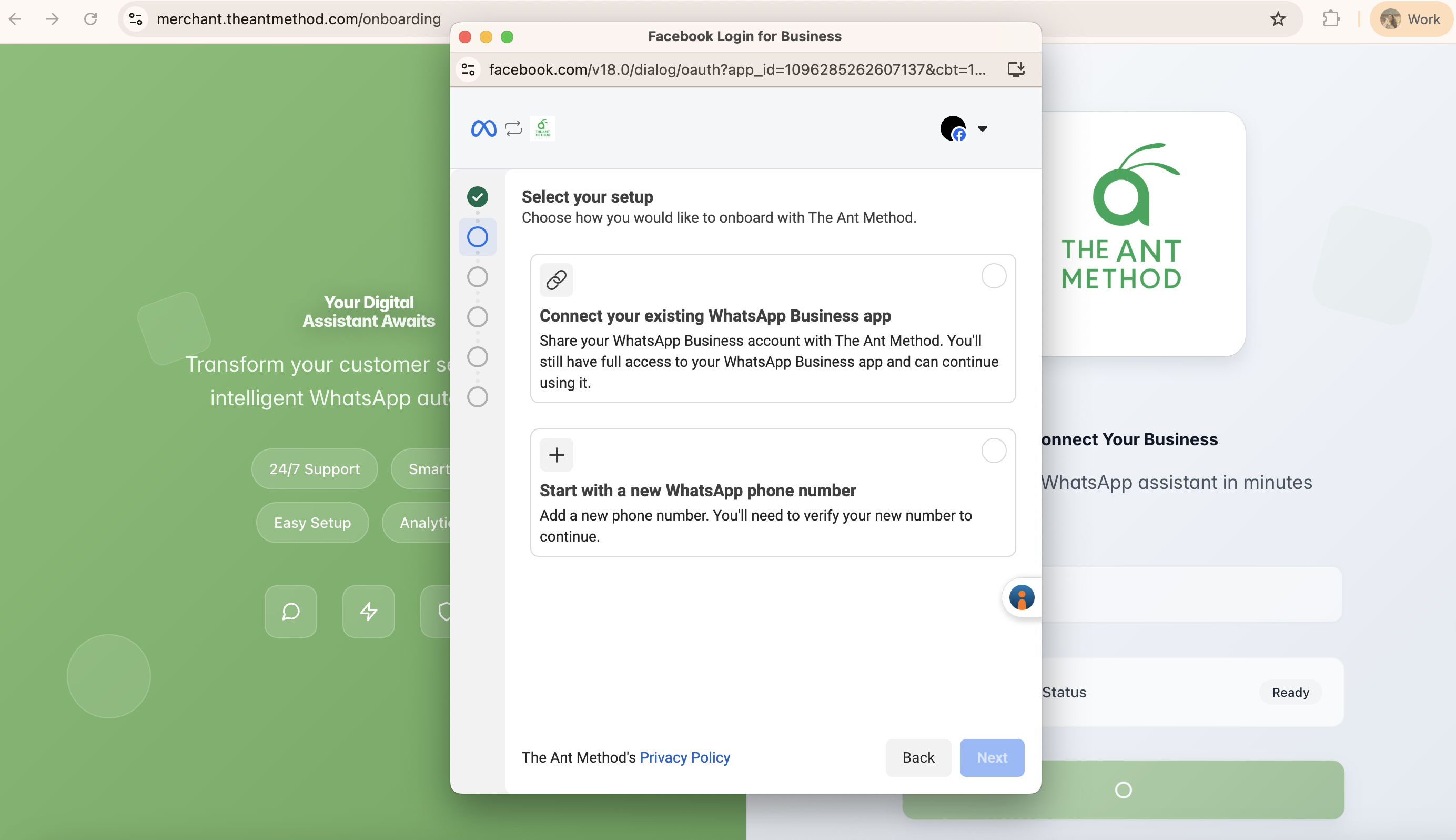
Select Your Setup Method
Select "Connect your existing WhatsApp Business app". This ensures full coexistence so your mobile phone app stays active.
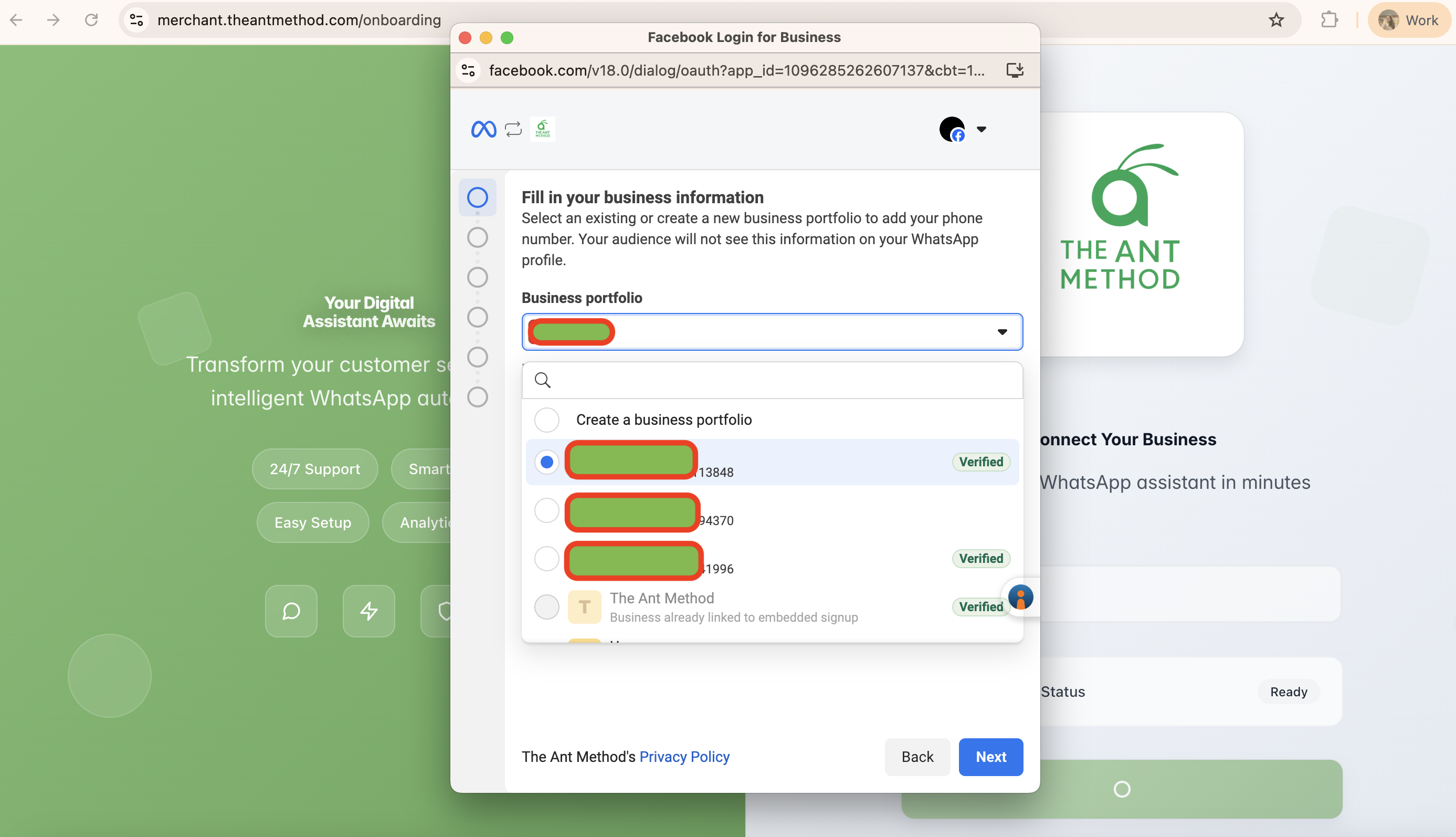
Select Your Verified Business Portfolio
Choose your verified business portfolio from the dropdown list. Pick the portfolio that has completed business verification.
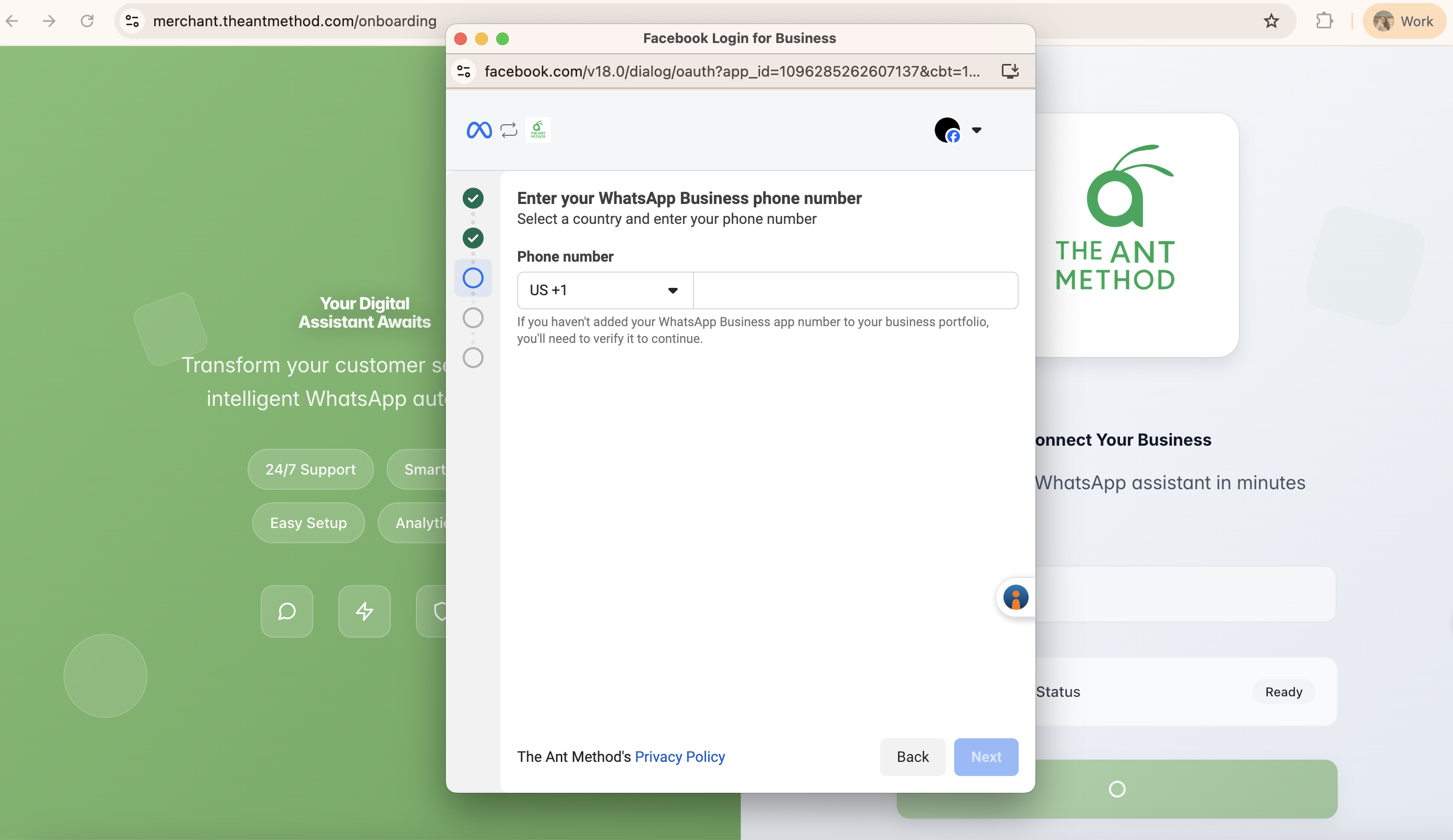
Enter & Verify Your WhatsApp Number
Select India (+91) and enter your business phone number. Complete OTP confirmation to finish onboarding.
You're Connected!
Your WhatsApp Business is now fully integrated with The Ant Method.